Anonymous Google Pay Setup
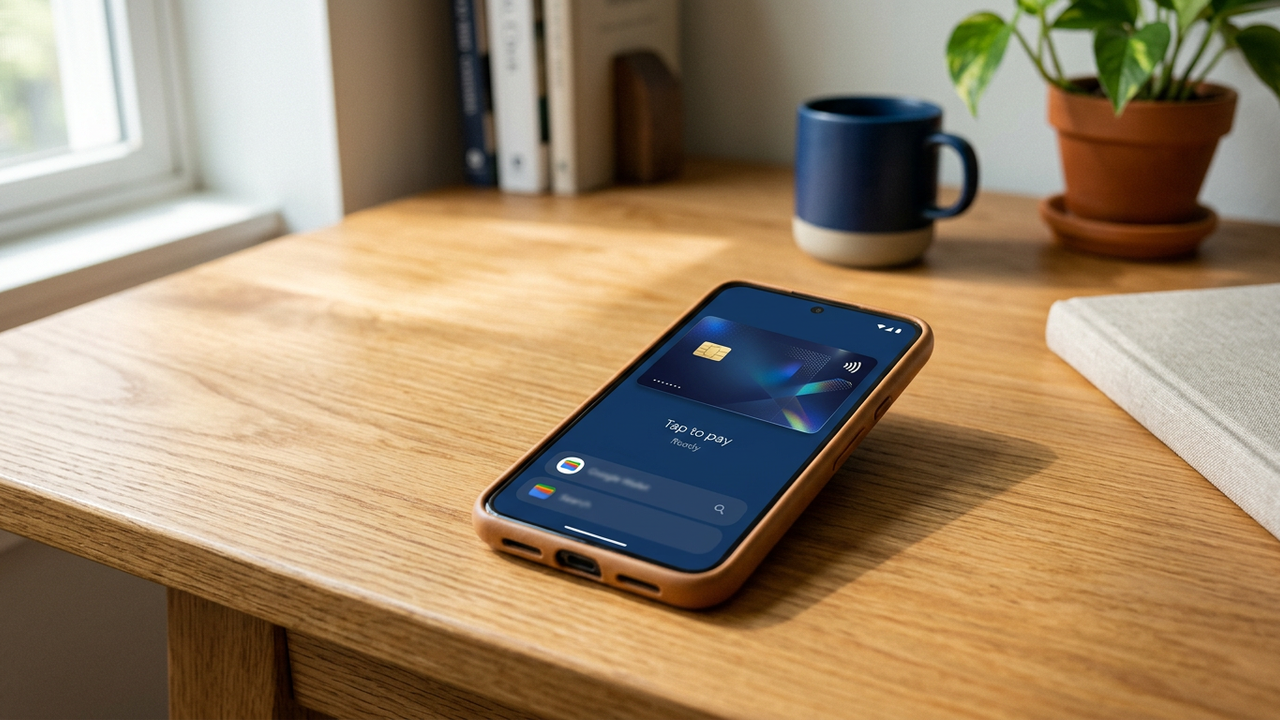
How to Set Up Anonymous Google Pay
-
1
Create your no KYC card account
Register with a username and password. No ID, no address verification. Your virtual card is ready immediately.
-
2
Open Google Wallet on your Android device
Launch the Google Wallet app or download it from the Play Store if you haven't already. Tap "Add to Wallet" and select "Payment card."
-
3
Enter your virtual card details
Input the card number, expiration date, and CVV from your dashboard. Google will verify the card through a small temporary authorization.
-
4
Complete verification
Check your card dashboard for the verification code Google sends. Enter it in the Wallet app to confirm. Some regions may require a phone number — a prepaid SIM works.
-
5
Start using Google Pay anonymously
Your crypto-funded card is now in Google Wallet. Tap to pay at any NFC terminal worldwide. No personal card details are exposed to the merchant.
Why Google Pay with a No KYC Card?
Google Pay is the dominant mobile wallet on Android with over 150 million users. By pairing it with a no KYC virtual card, you get seamless contactless payments while maintaining complete financial privacy. No bank account needed, no credit check, no paper trail.
Google Pay NFC Coverage Worldwide
Google Pay contactless payments are supported in over 80 countries. Here is the coverage breakdown for key regions where no KYC cards see the most usage:
| Country | NFC Terminals | Bank App Required? | No KYC Card Works |
|---|---|---|---|
| United States | ~80% of POS terminals | No | Yes |
| India | Vast UPI/NFC network | No | Yes |
| Brazil | Widely deployed | No | Yes |
| UK / EU | Near-universal | No | Yes |
| Japan | FeliCa + NFC hybrid | Osaifu-Keitai may be needed | Partially |
| South Korea | NFC available but limited | Domestic apps dominate | Limited |
Google Pay works best in countries with established Visa/Mastercard contactless infrastructure. In markets dominated by domestic payment rails (Japan, South Korea), acceptance varies.
Understanding Your Virtual Card Number
Every virtual debit card is issued with a unique 16-digit PAN (Primary Account Number). The first 6 digits — the BIN — determine compatibility with Google Wallet. Here is how to read your card:
| Digit Block | Meaning | What It Tells You |
|---|---|---|
| Digits 1-6 | BIN (Bank Identification Number) | Issuing country, card network (Visa/MC), card type (Debit/Credit/Business) |
| Digits 7-15 | Account identifier | Your unique account reference within the BIN range |
| Digit 16 | Luhn check digit | Calculated from previous 15 digits; validates card number integrity |
Google Wallet validates the BIN at the time of card addition. Cards issued with major-country BINs (US, UK, EU) pass Google's verification nearly 100% of the time. BINs from emerging-market issuers may trigger additional verification steps.
Fund Your Card: Accepted Cryptocurrencies
| Asset | Network | Avg. Confirmation | Fee Est. |
|---|---|---|---|
| Bitcoin (BTC) | Bitcoin | ~10-30 min | $1-$10 variable |
| USDT | TRC-20 / ERC-20 | ~1-2 min (TRC-20) | ~$1 (TRC-20) |
| Ethereum (ETH) | ERC-20 | ~3-5 min | $3-$15 variable |
| TRX | TRC-20 | ~1 min | <$0.10 |
| BSC (BNB) | BEP-20 | ~1-2 min | <$0.50 |
| MATIC (POL) | Polygon | ~30 sec | <$0.05 |
For fastest top-ups, we recommend TRC-20 USDT (1-2 min confirmation, ~$1 fee) or Polygon MATIC (near-instant, sub-cent fees). BTC deposits require 1 confirmation, which averages 10 minutes at standard fees.
Platform Compatibility Quick Reference
| Platform | Wallet App | Requires Phone? | Related Guide |
|---|---|---|---|
| Android | Google Wallet | Any Android number | This guide |
| iOS / iPhone | Apple Wallet | Active iPhone required | Fund Apple Pay with BTC → |
| Spotify | Direct card entry | No | Anonymous Streaming → |
| Amazon | Direct card entry | No | Amazon GC with Crypto → |
Security & Privacy Quick Wins
Use a prepaid SIM for wallet verification
Google Wallet may request phone verification when adding a new card from an unfamiliar BIN. A prepaid SIM — available for ~$5 at any convenience store — provides verification without linking to your personal identity. Keep the SIM active only during setup.
Disable Google Pay transaction history sync
Google Pay logs transactions to your Google Account by default. To keep your spending private, go to Google Pay → Settings → Privacy & Security → Turn off "Personalization within Google Pay" and disable purchase notifications. Transactions still process; they just won't be saved to your Google profile.
Create a separate Google account for payments
For maximum privacy isolation, create a dedicated Google Account (no phone number required at creation) that you use exclusively for Google Pay. This prevents your payment activity from mixing with your primary Google Account's search history, location data, and email.
Comments
Leave a Comment
Only registered members can comment.
Set up Google Pay with your no KYC card
Get your virtual debit card and add it to Google Wallet in under 5 minutes.
Get Started