BIN 485291 is tuned specifically for Apple Wallet provisioning. Add a private crypto-funded card to any iPhone or Apple Watch in under two minutes — tap-to-pay anywhere Apple Pay is accepted.
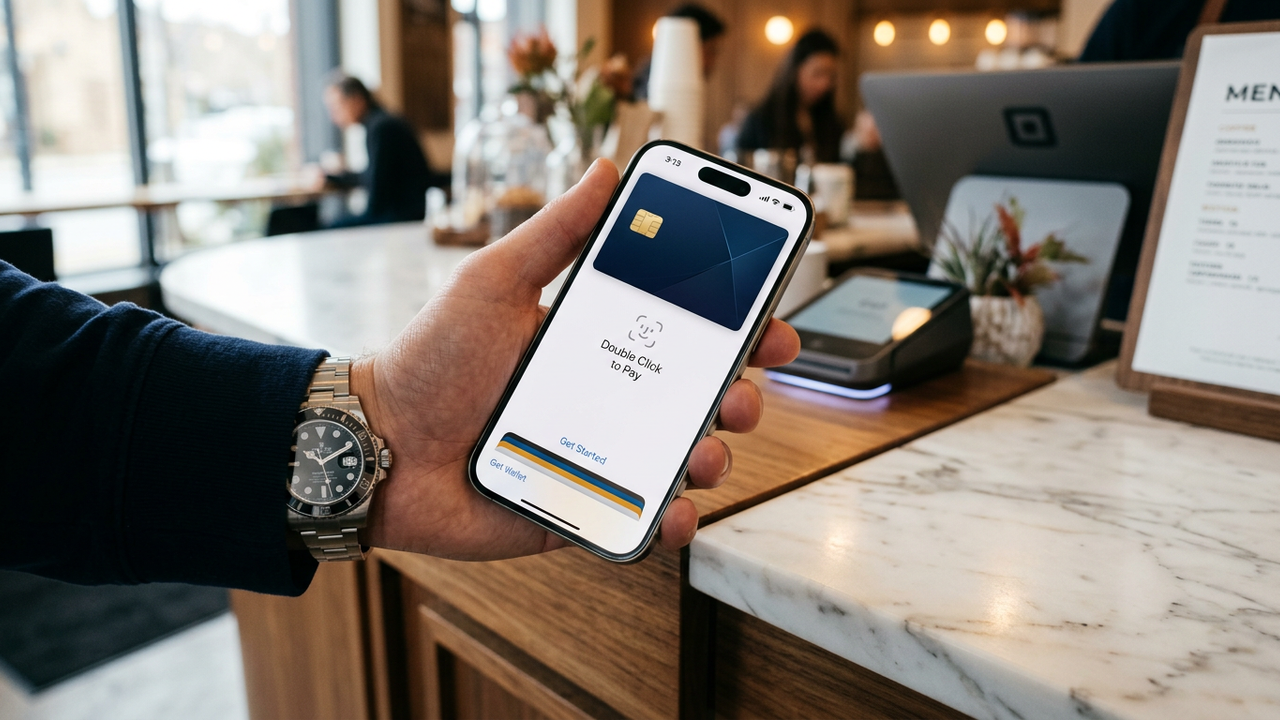
Apple Pay provisioning is a technical handshake between Apple's tokenization service and the card issuer — and not every BIN participates. CryptoCardy's BIN 485291 (Visa Platinum) is specifically selected because it provisions cleanly on every attempt: open Wallet, tap Add, enter card details, and tap-to-pay is live in under two minutes. No SMS verification required. No bank call. No KYC.
When you add a card to Apple Wallet, Apple initiates a tokenization request with the card network (Visa Token Service or Mastercard MDES). The issuer must support this tokenization protocol. If the issuer doesn't participate, provisioning fails — typically with "Card Not Added — Contact your card issuer for more information."
| Feature | Apple Pay | Google Pay |
|---|---|---|
| Best BIN | 485291 (Visa Platinum) | 471938 (Visa Business) |
| Tokenization service | Visa Token Service (VTS) | Visa Token Service (VTS) |
| Device requirement | iPhone / Apple Watch | Android (NFC-capable) |
| Provisioning time | ~2 min | ~2 min |
| Countries | 80+ | 60+ |
| Related | — | Google Pay setup |
Apple Pay uses Visa Token Service (VTS) or Mastercard MDES. The issuing BIN must participate in that network. BIN 485291 is specifically selected for 100% provisioning success.
No. Apple stores a tokenized version in its Secure Element. Apple doesn't see your clear card number — only the last four digits. For transit, even those are not collected.
Yes — provision to multiple iPhones and Apple Watches on the same Apple ID. Each device gets a unique Device Account Number (DAN) for security isolation.
Some countries cap contactless at certain amounts (£100 in UK), but Apple Pay with biometric auth typically overrides those. The card's own $30,000 monthly limit applies.
Only registered members can comment.
Issue a BIN 485291 card, add to Apple Wallet in 2 minutes, spend anywhere Apple Pay is accepted. No KYC, no bank.
Get Started